

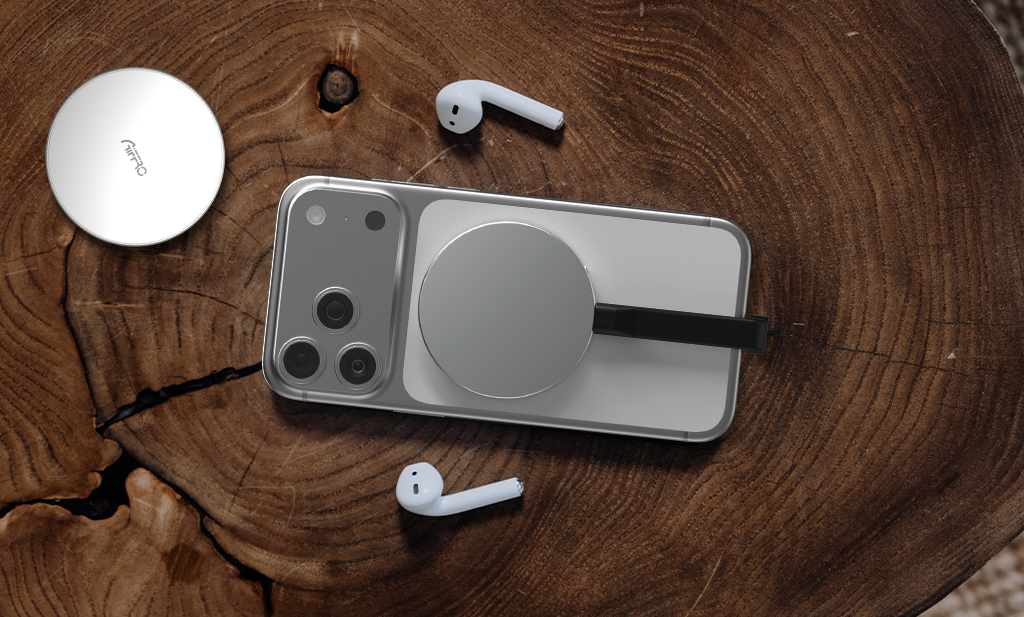
You have an SSD, and now you purchase a MagSafe SSD, does all your data remain in the old one? Do you need to go back to your previous SSD again and again for your videos and files? Absolutely, not.
Why?
You have the option to clone SSD to your MagSafe SSD in just a few simple steps. Cloning an SSD is one of the best ways to move your whole system, apps, files, and settings to a new drive without reinstalling everything.
You have a MagSafe SSD and want to clone your old SSD to a new one. Our simple guide will help you with this.
If you’ve got a particular MagSafe SSD in mind, like the Aiffro P10 Plus, this article will take you through every step. You’ll learn what you need, how to avoid problems, and how to finish cleanly so your new drive works just like the old one.
What Does “Clone SSD” Mean And Why It’s Useful
Cloning is the copying of everything from the source device to the destination one. Cloning an SSD means copying everything from the old drive to another, more advanced one, bit by bit. That includes:
- Operating system files
- Programs and applications
- User data (documents, photos, videos)
- Hidden and system folders
- Boot loader or recovery partitions
Why clone instead of just copying files manually? That’s the question many people ask. And my quick answer is only one: ‘Do you really have such free time?’
The technical answer is more important and has a reason. Many parts of your system are invisible or locked when the OS is running. Cloning makes sure the destination SSD can boot and behave just like your original drive.
Here’s when cloning comes in handy:
- Upgrading from a smaller or slower SSD to a larger or faster one
- Replacing a failing drive
- Moving to an external SSD, like a MagSafe SSD, for portability
What is a MagSafe SSD Anyway?
A MagSafe SSD is an external solid-state drive that uses Apple’s magnetic MagSafe system. It has magnetic parts so it snaps on or aligns easily, especially with iPhones or MacBooks that support MagSafe. It makes connecting and disconnecting cleaner and safer, helps with cable clutter, and often improves mobility.
MagSafe SSDs come with fast transfer speeds and a rugged build, often supporting multiple interfaces like Type-C, Lightning, etc.
But that’s not the case, that you only use MagSafe SSD with Apple devices. This feature is helpful, and all devices want to benefit from it. That’s why Aiffro comes with Magsafe portable SSDs, which attach to different smartphones and laptops. We have discussed cloning methods for general seekers, using any kind of MagSafe SSDs.
Things to Check Before Cloning Your SSD
Clone SSD is a simple process, but for those who have done these four things. Skipping them often leads to problems later.
- The first thing is to check the space of your new MagSafe SSD. You need a large storage space holding a destination MagSafe SSD that’s capable to handling everything on your source SSD, including used space, partitions, etc. If your source is 500 GB used, consider getting at least a 512 GB or 1 TB SSD for added safety.
-
Compatibility is the right thing to check. If you plan to boot from the MagSafe SSD, make sure your computer supports booting from external SSDs. Also check connections:
- USB
- Type-C
- Lightning
- Always have a backup because you don’t want to lose your data. If the clone SSD process goes wrong, you need a backup ready to retrieve everything. Time Machine, another external drive, or cloud storage works.
-
Pick a cloning tool that supports bootable clones, system partitions, etc. Also, ensure your system is updated (firmware/OS) to avoid driver, permission, or compatibility issues.
Choosing Your Cloning Method
You usually have two main ways to clone your SSD to a MagSafe SSD:
|
Method |
What It Is |
Pros |
Cons |
|
Disk Utility (macOS built-in “Restore” function) |
Use macOS’s own tools to clone a drive or partition. |
Free, reliable for many users, supports bootable clones. |
May be slower and require extra steps and be less flexible for incremental backup. |
|
Third-party cloner software like Carbon Copy Cloner and SuperDuper |
Dedicated apps that copy and often offer more control. |
More features (scheduling, safety checks, incremental), often easier UI. |
Might cost money, requires learning, sometimes extra setup. |
Choose what fits your situation: simple clone SSD? Use Disk Utility. More control or frequent cloning? Use a third-party tool.
Cloning Options for Different Operating Systems
While macOS users can rely on Disk Utility to clone SSDs, not everyone uses a Mac. We share here alternatives for those using different operating systems. So, check the list here according to your OS:
Windows Users
Users need third-party software for cloning an SSD because Windows does not include a built-in disk cloning tool. Some popular choices are
- Macrium Reflect
- EaseUS Todo Backup
- AOMEI Backupper
These tools provide a simple interface to copy data sector by sector from one SSD to another.
Linux Users
Users find a powerful native tool like the dd command for cloning SSDs, which can clone drives directly from the terminal. GParted and Clonezilla are reliable options for users who prefer a graphical interface.
How to Clone Your SSD to a MagSafe SSD
We cover all the processes of cloning SSDs on different OS to help our readers, not only for macOS users.
How to Clone SSD to a MagSafe SSD on macOS
Mac users can use Disk Utility, which is built into every Mac. It creates a one-to-one copy of your SSD.
Steps for macOS:
- Connect the MagSafe SSD to your Mac using USB-C or a compatible port.
-
Open Disk Utility and follow the process
- Applications → Utilities → Disk Utility
- Select your MagSafe SSD in the left sidebar.
- From the menu, choose Edit → Restore.
- Pick your old SSD as the “Restore From” source.
- Confirm the process that will erase the MagSafe SSD.
- Wait for the cloning to finish.
Once done, restart your Mac and hold Option (⌥) at startup. You should see the MagSafe SSD listed as a bootable option. Select it and confirm everything runs smoothly.
How to Clone SSD to a MagSafe SSD on Windows or Other Operating Systems
You’ll usually rely on third-party cloning tools when your system has Windows and Linux. These are designed to handle system partitions and create bootable clones.
General Steps for Windows/other OS:
- Connect the MagSafe SSD to your computer.
- Install and open a cloning tool that you find to be trusted and widely used.
- Select your current SSD as the source drive.
- Select your MagSafe SSD as the destination drive.
- Make sure the option for cloning boot partitions is enabled.
- Start the clone. You need to wait for 30 minutes to several hours. Completion of the task based on your data size.
- Next step is to restart your computer after the process finishes. If you want to run directly from it, enter BIOS/UEFI and select the MagSafe SSD as the boot device.
Clonezilla or dd are better options for Linux users. These tools offer the same result, but require more command-line knowledge.
How to Clone SSD to a MagSafe SSD with Aiffro P10 Plus
The Aiffro MagSafe SSD P10 Plus is the most convenient portable SSD for devices other than iPhones. It’s a high-speed SSD that connects through MagSafe and supports both USB-C and Lightning interfaces.
Why the Aiffro P10 Plus works well for cloning:
Aiffro P10 Plus is one of the solid options to use as a destination for your clone. Here’s what it brings:
- High speed up to ~2000 MB/s read and ~1800 MB/s write when using USB-C
- Compact build of only 59×59×6.5 mm. This small size is easy to carry anywhere
- It supports both Lightning and Type-C. That makes it useful if you’re switching between older and newer Apple devices or want compatibility.
- Flexible connection works with modern MacBooks, iPhones and other Type-C devices
- Solid build as it has an aluminum body, which helps with durability and heat control
So if you plan to clone large files, boot systems, or need high transfer speeds, the P10 Plus gives you good performance. Just make sure your computer supports the speed and format.
Steps with Aiffro P10 Plus:
- Connect the Aiffro MagSafe SSD P10 Plus via USB-C, which is the best option for speed.
-
Format it using the right file system, like
- APFS if cloning a Mac drive
- NTFS if cloning Windows
-
Follow the cloning method for your system
- Disk Utility on macOS
- Third-party software on Windows/Linux
- Once the process is complete, test booting from the Aiffro SSD or open files directly to confirm success.
Note: Transfer speeds will be much slower than USB-C when you are using Lightning mode of older iPhones. Always prefer USB-C for large data or full system clones.
Common Issues When Cloning & How to Fix Them
You might hit a snag even with careful steps. Here are common issues and how to handle them:
|
Problem |
Cause |
Fix |
|
Destination too small |
The source used space exceeds the destination capacity |
Use a larger MagSafe SSD, or delete unnecessary files before cloning |
|
Clone not bootable |
System partition not cloned, wrong file system, or wrong boot loader |
Check partition scheme, ensure system/recovery partitions are included |
|
File permissions errors |
Some system files locked or in use during cloning |
Boot in Recovery mode; use software that handles locked files |
|
Very slow speed |
Using an older interface (e.g., Lightning with an older iPhone), cable quality, or a slow source drive |
Use high-speed ports, good cable; for Aiffro P10 Plus, note the interface speed limits in different modes. |
Post-Cloning Advice: What to Do After Migration
- Make the MagSafe SSD your startup drive if that was the goal. On Mac, this often means going to System Settings → Startup Disk.
- Update any path links if apps depend on specific drive names or directories.
- Leave the old SSD intact for several days until you're sure nothing is missing.
- Regular backups work as a savior. Cloning once is great, but if you get a failure later, having extra backups helps.
Conclusion
Clone SSDs after upgrading your storage solutions is an important process. Cloning your SSD to a MagSafe SSD can simplify your life. You keep your system, apps, files — all moved over — without reinstalling everything.
The process is not hard if you pick a good MagSafe SSD like the Aiffro P10 Plus, format it correctly, and follow the right steps.
After doing the prep work and choosing the compatible cloning method, follow the steps properly for complete cloning. Once you’ve done that, you’ll have a fully working clone on a portable, fast MagSafe SSD, ready for use.

Laisser un commentaire
Ce site est protégé par hCaptcha, et la Politique de confidentialité et les Conditions de service de hCaptcha s’appliquent.